Drawing Apps Guide to Creating Art on a Screen
Have you ever wanted to draw or paint but didn’t have paper or supplies? There’s a fun and easy way to create art right on your phone, tablet, or computer. It’s all possible thanks to drawing apps. These special programs turn your screen into a blank canvas where you can bring your ideas to life.
This guide will tell you everything you need to know about drawing apps. We will explore what they are, why they are so useful, and which ones are great for beginners. You don’t need to be a professional artist to use them. Anyone can learn to create amazing pictures with a little practice. Let’s dive into the colorful world of digital art.
What Exactly Are Drawing Apps?
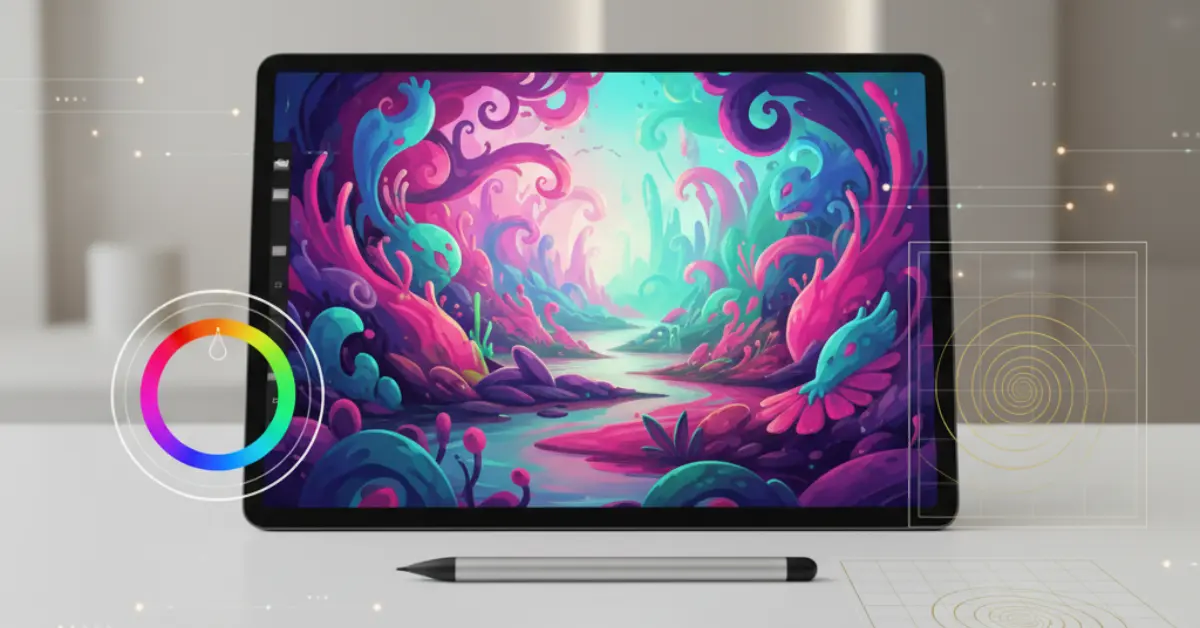
A drawing app is a program that lets you draw, sketch, and paint on a digital device. Think of it like a toolbox filled with every art supply you can imagine. Instead of real pencils, paints, and brushes, you have digital versions of them. You can use your finger or a special pen called a stylus to draw on the screen.
These apps give you tools to create anything from simple doodles to detailed masterpieces. You can choose different colors, change the size of your brush, erase mistakes easily, and even add special effects. It’s like having a full art studio in your pocket or on your desk.
Many drawing apps are designed to be simple and fun. Others are more powerful and are used by professional artists to create illustrations for books, movies, and video games. No matter your skill level, there is a drawing app out there for you.
Why Should You Try Using Drawing Apps?
You might wonder why you should use a drawing app instead of traditional paper and pencils. There are many great reasons to give digital art a try.
1. No Mess, No Fuss
One of the best things about drawing apps is that there is no mess. When you paint with real paint, you can get it on your hands, clothes, and furniture. You have to clean your brushes and put everything away when you are done. With a drawing app, all your tools are inside the program. There’s nothing to clean up. You can start and stop drawing whenever you want without any hassle.
2. All Your Tools in One Place
Imagine having every color of pencil, marker, and paint you could ever want. With a drawing app, you do. You have access to millions of colors. You can choose from dozens of different brushes that mimic the look of a real paintbrush, a charcoal stick, or an airbrush. You don’t have to buy new supplies. Everything is included in the app. This saves you money and space.
3. The Magical “Undo” Button
Have you ever made a mistake while drawing and wished you could just make it disappear? In the world of drawing apps, you can. Almost every app has an “undo” button. If you draw a line you don’t like, you just tap “undo,” and it’s gone. You can undo as many steps as you need to. This freedom to make mistakes without ruining your artwork makes drawing much less stressful and more enjoyable for beginners.
4. Layers Make Drawing Easier
A powerful feature in many drawing apps is layers. Think of layers as clear sheets of plastic stacked on top of each other. You can draw different parts of your picture on different layers. For example, you can draw the background on one layer, a character on a second layer, and the details on a third layer.
This is helpful because you can change one part of your drawing without affecting the others. You can move the character around, change the background color, or erase part of one layer without touching the rest of your art. It gives you incredible control over your creation.
5. Share Your Art with the World
Once you finish a drawing, it’s easy to share it. You can save your picture to your device and send it to friends and family through text or email. You can also post your art on social media sites like Instagram or Facebook to show everyone what you have created. It’s a great way to get feedback and connect with other artists.
Popular Drawing Apps for Everyone
There are hundreds of drawing apps available. Some are free, while others cost money. Let’s look at some popular options that are great for different needs and skill levels.
For Beginners and Casual Fun
If you are just starting out or want to doodle for fun, these apps are perfect. They are easy to use and often free.
- ibis Paint X: This is a fantastic free app for both phones and tablets. It is packed with features but is still easy for beginners to learn. It has thousands of brushes, fonts, and backgrounds. The app even has a feature that records you drawing, so you can watch a video of your process and share it.
- MediBang Paint: Another wonderful free app, MediBang Paint is available on phones, tablets, and computers. It’s known for being lightweight and simple. It has a great selection of brushes and tools, and it’s especially popular for creating comics and manga. You can save your work to the cloud, so you can access it from any device.
- Autodesk Sketchbook: Sketchbook used to be a paid app, but now it’s completely free. It offers a clean, simple interface that feels very natural to draw with. It has a great set of professional-level tools without being overwhelming. It’s an excellent choice for anyone who wants a powerful but easy-to-use drawing app.
For Professional and Serious Artists
If you are serious about digital art and want the most powerful tools, these drawing apps are the industry standard. They usually have a one-time cost or a monthly subscription.
- Procreate: This app is only available for the iPad, but it is one of the most loved drawing apps in the world. It costs a one-time fee and is worth every penny for serious artists. Procreate has an incredible brush engine, an easy-to-use interface, and powerful features like layers and animation assist. It feels very responsive and natural, especially when used with an Apple Pencil.
- Clip Studio Paint: This is a top choice for comic book artists, illustrators, and animators. It is available for computers, tablets, and phones. Clip Studio Paint has amazing tools for drawing, inking, and coloring. It has special features for creating comic panels and 3D models you can pose to help with drawing difficult angles. It’s a very powerful program for professional work.
- Adobe Fresco: From the makers of Photoshop, Adobe Fresco is a drawing and painting app designed for touch devices. It has unique “live brushes” that mimic how real oil and watercolor paints blend and spread on a canvas. It’s a great app for artists who want to create a traditional painted look in their digital art. It works with other Adobe products, which is a big plus for professional designers.
Getting Started with Drawing Apps: A Simple Guide
Ready to start drawing? Here’s a step-by-step guide to help you begin your journey with drawing apps.
Step 1: Choose Your Device and App
First, decide what device you want to use. A tablet with a stylus, like an iPad with an Apple Pencil, gives you the most control and feels the most like drawing on paper. However, you can also use your finger on your smartphone or a mouse on your computer.
Next, download a drawing app. If you’re a beginner, start with a free app like ibis Paint X or Autodesk Sketchbook. This way, you can try digital art without spending any money.
Step 2: Explore the Tools
Once you have the app open, take some time to explore. Don’t be afraid to tap on all the buttons to see what they do. Find the brush tool and look at the different types of brushes. Try changing the size and color.
Look for the eraser tool. This will be your best friend when you make mistakes. Find the color wheel or color palette, where you can pick any color you want. Just play around and get comfortable with the basic tools. Scribble, doodle, and experiment.
Step 3: Learn About Layers
Find the layers panel. It usually looks like a stack of squares. Try creating a new layer by tapping a “+” button. Now you have two layers. Draw something simple on the new layer, like a circle. Then, switch back to the first layer and draw something else, like a square.
Notice how you can draw on one layer without changing the other. Try using the eraser on the layer with the circle. It will only erase the circle, not the square. Learning to use layers is one of the most important skills in digital art.
Step 4: Start with Simple Drawings
Don’t try to create a masterpiece on your first day. Start with something simple. Try drawing basic shapes like circles, squares, and triangles. Practice drawing straight lines and curved lines.
A good exercise is to try drawing an apple. It’s a simple shape, but you can practice shading and adding highlights to make it look three-dimensional. Watch tutorials online for guidance. There are thousands of free videos on YouTube that teach you how to use specific drawing apps and draw different things.
Step 5: Practice, Practice, Practice
Like any skill, getting good at digital art takes practice. Try to draw a little bit every day, even if it’s just for 15 minutes. The more you use the app, the more comfortable you will become with the tools.
Don’t get discouraged if your first drawings don’t look perfect. Every artist starts somewhere. The most important thing is to have fun and enjoy the process of creating. Your skills will improve over time.
Tips for Making the Most of Drawing Apps
Here are a few more tips to help you on your digital art journey.
- Use a Stylus: While you can draw with your finger, a stylus will give you much more precision and control. A simple, inexpensive stylus can make a big difference. If you have a tablet that supports it, a pressure-sensitive stylus is even better. This means the harder you press, the thicker or darker the line will be, just like a real pencil.
- Customize Your Brushes: Most drawing apps let you change the settings of your brushes. You can adjust their shape, texture, and how they react to pressure. Experiment with these settings to create your own custom brushes that fit your style.
- Learn Keyboard Shortcuts: If you are using a drawing app on a computer, learning keyboard shortcuts can speed up your workflow. For example, there are often shortcuts for switching to the eraser, changing brush size, and undoing an action.
- Don’t Be Afraid to Trace: When you are learning, tracing can be a helpful tool. You can import a photo into your drawing app on one layer, lower its opacity (make it see-through), and trace over it on a new layer. This can help you understand shapes, proportions, and how objects are constructed. Just be sure not to claim traced art as your own original creation.
- Join a Community: Many drawing apps have online communities where you can share your art, get feedback, and see what other people are creating. This is a great way to stay motivated and learn new techniques from other artists.
The Future of Art is at Your Fingertips
Drawing apps have made art more accessible than ever before. They provide a powerful, clean, and affordable way for anyone to express their creativity. Whether you want to sketch for fun, create beautiful illustrations, or design professional graphics, there is a drawing app that can help you achieve your goals.
The technology behind these apps is always improving. New features and more realistic tools are being developed all the time. What was once only possible in expensive art studios is now available to everyone with a smartphone or tablet.
So, why not give it a try? Download a free drawing app today and see what you can create. You might just discover a new passion and unlock the artist within you. The blank canvas is waiting. All you have to do is make the first mark.