My Apps: Guide to Use Applications on Your Phone
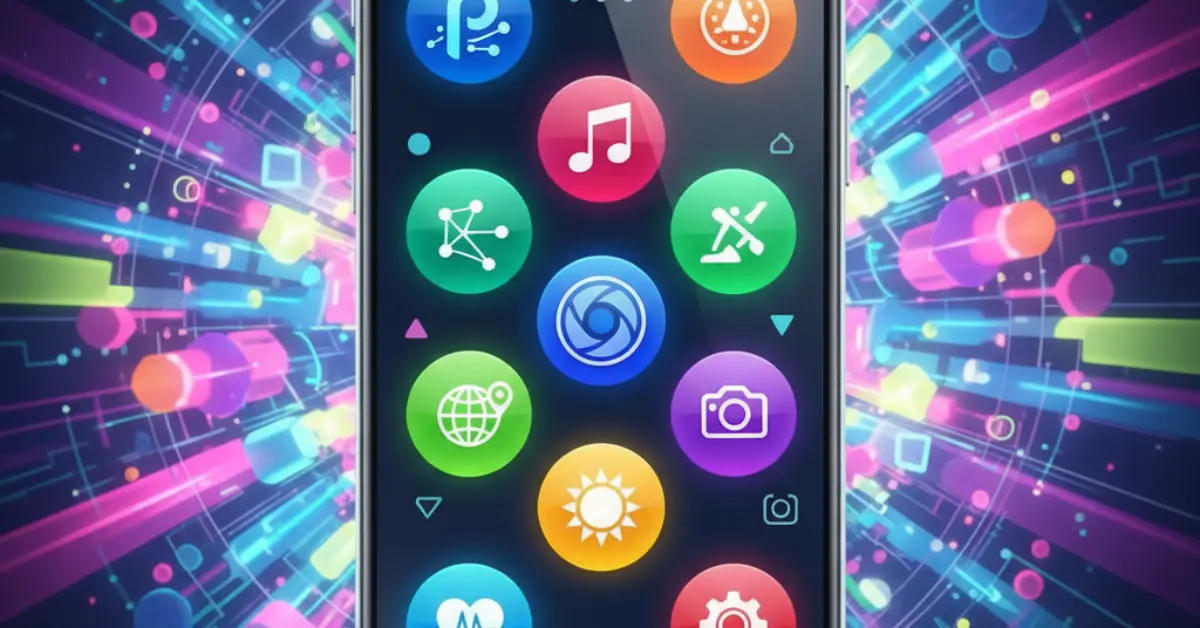
Have you ever looked at a smartphone and wondered what all those little colorful squares are? Those are called apps. “Apps” is short for “applications.” They are like small tools or programs that help you do specific things on your phone or tablet.
When people talk about “my apps,” they are talking about the collection of tools they have chosen to keep on their device. Think of your phone like a toolbox. When you buy it, it comes with a few basic tools, like a hammer and a screwdriver (or in phone terms, a way to make calls and send texts). But you can add more tools to your toolbox. You can add a tape measure, a level, or a wrench. These extra tools are your apps.
In this guide, we will talk all about apps. We will learn what they are, how to get them, and how they can make your life easier. By the end, you will feel comfortable saying, “My apps help me every day.”
What Exactly Are Apps?
Let’s start with the basics. An app is a piece of software. Software is just a set of instructions that tells a computer or phone what to do. You do not need to know how to write these instructions. You just need to know how to use the result.
Imagine you want to cook a meal. You could try to do everything from scratch, like growing the vegetables and raising the chickens. Or, you could go to a restaurant where someone has already done the hard work for you. Apps are like that restaurant. Someone else—a computer programmer—has done the hard work of building a tool so you can just tap a button and get what you need.
When you look at your phone screen, you see icons. An icon is a small picture. When you tap that picture with your finger, the app opens.
“My Apps” vs. Everyone Else’s Apps
Your phone is personal. That is why we say “my apps.” The apps on your phone might be very different from the apps on your friend’s phone.
For example, if you love fishing, you might have an app that tells you the weather and where the fish are biting. If your friend loves cooking, they might have an app with recipes. Your collection of apps makes your phone special for you.
Why Are Apps Useful?
Why do people use apps? The simple answer is that they help us do things faster and better. Here are a few reasons why apps are so popular:
- They save time. Instead of driving to the bank, you can check your balance on a banking app.
- They keep us connected. You can see photos of your grandchildren or talk to friends far away.
- They entertain us. You can play games, watch movies, or listen to music.
- They teach us. You can learn how to fix a leaky sink or speak a new language.
When you look at your phone and see “my apps,” you should see a list of helpers ready to work for you.
Common Types of Apps
There are millions of apps out there. It can be confusing. To make it simple, let’s group them into categories. Here are the types of apps most people use.
1. Communication Apps
These apps help you talk to people.
- What they do: Send messages, make video calls, and share photos.
- Examples: WhatsApp, Facebook Messenger, Zoom.
- How they help: If you have family in another city, you can see their face while you talk to them for free using the internet.
2. Social Media Apps
These apps help you see what your friends and family are doing.
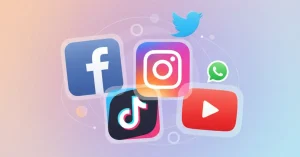
- What they do: Let you post pictures and write updates about your life.
- Examples: Facebook, Instagram, TikTok.
- How they help: You can feel close to your community even when you are at hom
3. Entertainment Apps
These apps are for fun.
- What they do: Show movies, play music, or let you play games.
- Examples: YouTube, Netflix, Spotify, Candy Crush.
- How they help: They are great for passing time when you are waiting for a bus or relaxing in the evening.
4. Utility Apps
These are the useful tools we talked about earlier
- What they do: Help with daily tasks like checking the weather, finding your way on a map, or using a calculator.
- Examples: Google Maps, Weather Channel, Calculator, Flashlight.
- How they help: If you get lost, a map app can tell you exactly where to go.
5. Shopping and Money Apps
These apps help you buy things and manage your money.
- What they do: Let you buy clothes or groceries, and check your bank account.
- Examples: Amazon, Walmart, Bank of America app.
- How they help: You can pay your bills without buying stamps or envelopes.
How to Get Apps on Your Phone
Now that you know what apps are, you might be wondering, “How do I add to my apps collection?”
You get apps from a place called an “App Store.” If you have an iPhone (made by Apple), you use the App Store. If you have an Android phone (like Samsung or Google), you use the Google Play Store.
Think of the App Store like a giant supermarket for your phone. Here is how you shop there:
- Find the Store icon: Look for the App Store or Play Store icon on your phone screen and tap it.
- Search: There is usually a magnifying glass icon. Tap it and type in what you are looking for. For example, type “weather” or “recipes.”
- Choose: You will see a list of options. Tap on one to read about it. Look at the stars. Five stars means people like it. One star means people do not like it.
- Download: If the app is free, you will see a button that says “Get” or “Install.” Tap it. The phone will do the rest.
- Open: Once it is finished downloading, you can open it and start using it.
Free vs. Paid Apps
Many apps are free. You do not have to pay any money to download them. However, some apps cost money. It will clearly say the price on the button (like “$0.99”).
Be careful with “free” apps. Sometimes, a game is free to download, but it asks you to pay money later to get extra lives or special items. This is called “in-app purchases.” Always read the screen carefully.
Managing “My Apps”
After a while, you might have a lot of apps on your phone. It can get messy. You want to be able to find “my apps” quickly when you need them.
Organizing Your Screen
You can move apps around. Press your finger on an app icon and hold it down. The icons might start to wiggle or pop up. While holding your finger down, drag the icon to a new spot. You can put your most important apps on the first page of your screen.
Updating Apps
Sometimes, the people who make the apps improve them. They fix bugs or add new features. This is called an update. Your phone will usually tell you when updates are ready. It is good to keep “my apps” updated so they work smoothly.
Deleting Apps
If you download an app and decide you don’t like it, you can get rid of it. This is called deleting or uninstalling.
- On iPhone: Press and hold the icon, then tap “Remove App.”
- On Android: Press and hold the icon, and look for an option that says “Uninstall” or a trash can symbol.
Deleting apps you don’t use is good. It frees up space on your phone for new photos or videos.
Tips for Choosing Good Apps
When you build your collection of “my apps,” you want the best ones. Here are some tips on how to choose.
Read Reviews
Before you download, look at what other people say. Reviews are written by regular people like you. If a lot of people say the app crashes or is hard to use, you should probably skip it.
Check the Creator
Look at who made the app. Big companies like Google, Microsoft, or your local bank are usually safe. If you have never heard of the company, be a little more careful.
Ask Friends
The best way to find good apps is to ask people you know. Ask your family, “What are your favorite apps?” or “Which weather app do you use?” They can show you what they like.
Safety and Privacy with Apps
Using apps is generally safe, but you should be smart about it. When you say, “These are my apps,” you want to make sure they are protecting your information.
Permissions
When you open a new app for the first time, it might ask for permission to do things.
- It might ask to see your Location (where you are).
- It might ask to use your Camera.
- It might ask to see your Contacts (your list of phone numbers).
Stop and think before you say “Yes” or “Allow.” Does this app really need that information?
- A map app needs your location to give you directions. That makes sense.
- A flashlight app does not need your location or your contact list. That does not make sense.
If an app asks for something that seems weird, say “No” or “Deny.”
Passwords
Some apps, like banking or Facebook, require a password.
- Make your password hard to guess. Do not use “123456” or “password.”
- Do not share your passwords with anyone.
- If you write them down, keep the paper in a safe place at home.
Scams
Sometimes bad people try to trick you through apps. If an app pops up a message saying “You won a prize!” or “Your phone has a virus!”, do not click it. These are usually tricks to get your money. Close the app immediately.
“My Apps” for Daily Life: Examples
- Let’s look at how a normal day might look using apps. This will show you why building your “my apps” list is so helpful.
- 7:00 AM – Waking Up
- Instead of an old alarm clock, you use the Clock app on your phone. You can pick a gentle sound to wake you up.
- 7:30 AM – Getting Dressed
- You open your Weather app. It says it will rain today. You decide to wear a raincoat and take an umbrella. Without the app, you might have gotten wet!
- 8:00 AM – Breakfast
- You want to make pancakes but forgot the recipe. You open a Recipe app or search on Google. You find a simple recipe in seconds.
- 10:00 AM – paying Bills
- You remember the electric bill is due. You open your bank’s app. You take a picture of the bill or type in the numbers, and the bill is paid. You didn’t have to write a check or buy a stamp.
- 12:00 PM – Lunch with a Friend
- You are meeting a friend at a new cafe. You don’t know where it is. You type the address into Google Maps. The voice tells you exactly when to turn left and right.
- 3:00 PM – Boredom
- You are waiting at the doctor’s office. The magazines are old. You open a game like Solitaire or Words with Friends on your phone. The wait goes by much faster.
- 6:00 PM – Talking to Family
- Your daughter lives in another state. You miss her. You open FaceTime or WhatsApp and video call her. You can see her new haircut and her dog. It feels like she is in the room with you.
- 8:00 PM – Relaxing
- You want to listen to some old songs you love. You open a music app like Pandora or Spotify. You type in your favorite singer’s name, and the app plays their hits.
- In all these moments, “my apps” were there to help you. They solved problems, gave you information, and made you smile.
Troubleshooting: When Apps Don’t Work
Sometimes, technology acts up. You might tap on an app, and nothing happens. Or it freezes. Don’t panic. Here are simple things to try.
1. Close the App and Open it Again
This is like turning it off and on. Depending on your phone, you might swipe the app away to close it completely. Then, tap the icon again.
2. Restart Your Phone
If “my apps” are acting strange, turn your whole phone off. Wait a minute. Turn it back on. This fixes almost all small problems.
3. Check Your Connection
Many apps need the internet to work. Look at the top of your screen. Do you see the Wi-Fi symbol (it looks like a little fan or rainbow)? If not, your app might not be able to get the information it needs.
4. Ask for Help
If you are stuck, ask a grandchild, a neighbor, or go to the store where you bought the phone. There is no shame in asking. Everyone has to learn.
How Apps Help Different People
“My apps” can be customized for anyone.
For Seniors
Apps can help seniors stay independent.
- Pill Reminders: Apps that beep when it is time to take medicine.
- Large Text: You can change settings so the words on the screen are big and easy to read.
- Magnifying Glass: Some apps use the camera to make small print on menus or pill bottles look huge.
For Parents
Parents use apps to keep life organized.
- Family Calendars: Apps that show everyone’s schedule so no one misses soccer practice.
- School Apps: Many schools have apps to tell parents about homework and grades.
For Students
Students use apps to learn.
- Dictionary Apps: To look up words quickly.
- Flashcard Apps: To help memorize facts for a test.
The Future of Apps
Apps are always changing. In the future, “my apps” might do even more amazing things.
- Health: Apps might be able to check your blood pressure just by touching the screen.
- Home Control: You can already use apps to turn on lights or lock doors at home, even when you are not there. This will become more common.
- Translation: Apps will get better at translating languages instantly. You could speak English to a phone, and it would speak Spanish to your friend.
Summary: Making “My Apps” Work for You
We have covered a lot of ground. We learned that apps are just tools. We learned where to find them and how to keep them safe.
The most important thing to remember is that you are in charge. You decide what goes into the “my apps” folder on your phone.
- If an app stresses you out, delete it.
- If an app helps you, keep it.
- If you don’t understand an app, ask for help.
Your phone is a powerful machine, but it is only as good as the apps you put on it. Start slowly. Download one or two apps that sound interesting. Maybe a weather app and a game. Get used to them. Once you feel comfortable, try another one.
Soon, you will have a screen full of icons that you know and love. You will be able to point to your phone and say with confidence, “These are my apps, and they make my life better.”
Using technology does not have to be scary. It is just a new way to do old things. We used to write letters; now we send texts. We used to look at paper maps; now we look at map apps. The goal is the same: to live a happy, connected, and easy life. So go ahead, explore the App Store, and start building your collection today.